

Nextcloud
Nextcloud 23 for Nextcloud Office with multiple Domains

By jplee ~ Published – 2022/02/23 Revised – 2022/04/27
Follow this guide and bind Collabora Office in your Nextcloud Server, so that Office documents online (mobile too) can be edited. We start with the system setup and remove the native docker, and set up the necessary tools:
sudo -s
apt remove docker docker-engine docker.io
apt install apt-transport-https ca-certificates curl software-properties-common -y
Ubuntu:
sed -i '$adeb https://download.docker.com/linux/ubuntu bionic stable' /etc/apt/sources.list
curl -fsSL https://download.docker.com/linux/ubuntu/gpg | sudo apt-key add -
Debian:
sed -i '$adeb [arch=amd64] https://download.docker.com/linux/debian stretch stable' /etc/apt/sources.list
curl -fsSL https://download.docker.com/linux/debian/gpg | sudo apt-key add -
Update the System and install docker-ce (docker community edition):
apt update && apt install docker-ce -y Test Docker:
docker run hello-world The result should correspond approximately to following Terminal screen output:
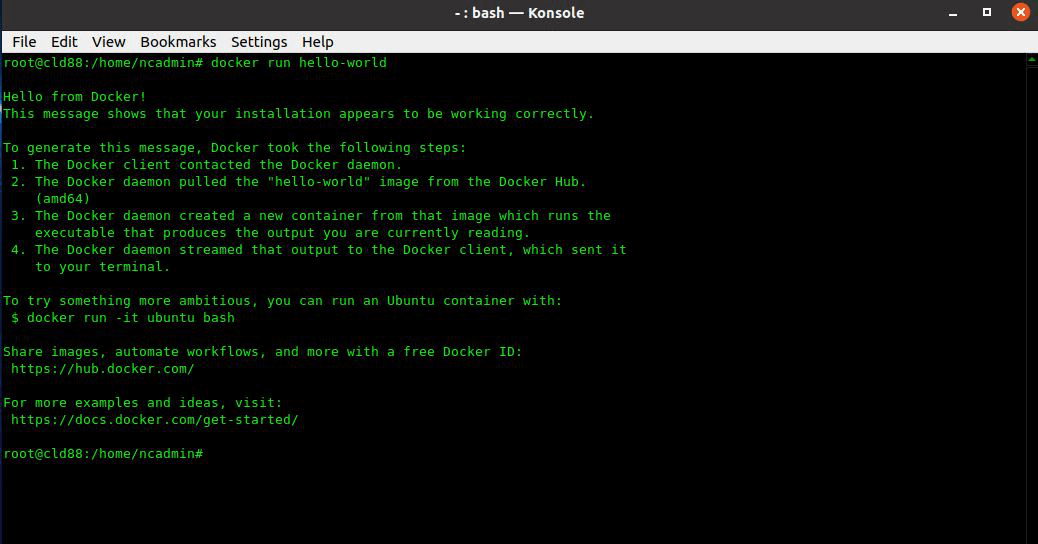
Now download with docker the Collabora/code:
docker pull collabora/code Add the (red text) below to your existing Nginx web server configuration:
vim /etc/nginx/conf.d/nextcloud.conf
vim /etc/nginx/conf.d/gateway.conf
…
location ~ ^/(?:\.|autotest|occ|issue|indie|db_|console) { return 404; }
### Start Collabora Online ###
# static files
location ^~ /browser {
proxy_pass https://127.0.0.1:9980;
proxy_set_header Host $http_host;
}
# WOPI discovery URL
location ^~ /hosting/discovery {
proxy_pass https://127.0.0.1:9980;
proxy_set_header Host $http_host;
}
# Capabilities
location ^~ /hosting/capabilities {
proxy_pass https://127.0.0.1:9980;
proxy_set_header Host $http_host;
}
# main websocket
location ^~ /cool {
proxy_pass https://127.0.0.1:9980;
proxy_set_header Upgrade $http_upgrade;
proxy_set_header Connection "Upgrade";
proxy_set_header Host $http_host;
proxy_read_timeout 36000s;
}
# download, presentation and image upload
location ~ ^/(c|l)ool {
proxy_pass https://127.0.0.1:9980;
proxy_set_header Host $http_host;
}
# Admin Console websocket
location ^~ /cool/adminws {
proxy_pass https://127.0.0.1:9980;
proxy_set_header Upgrade $http_upgrade;
proxy_set_header Connection "Upgrade";
proxy_set_header Host $http_host;
proxy_read_timeout 36000s;
}
### End Collabora Online ###
location ~ \.php(?:$|/) {
rewrite ^/(?!index|remote|public|cron|core\/ajax\/update|status|ocs\/v[12]|updater\/.+|oc[ms]-provider\/.+|.+\/richdocumentscode\/proxy) /index.php$request_uri;
…
}
Restart the Nginx web server:
nginx -t
service nginx restart
Now run Docker for one Domain – Start a new container, example for 21.11.2.4.1 and before versions:
docker run -t -d -p 127.0.0.1:9980:9980 -e "domain=your\\.website\\.com" -e "username=UserName" -e "password=Your-Secret" --name=COLLABORAOFFICE --restart always --cap-add MKNOD collabora/code:21.11.2.4.1
Run Docker for multiple Domains – Start a new container, example for 21.11.2.4.1 and before versions:
docker run -t -d -p 127.0.0.1:9980:9980 -e "domain=your\\.website\\.com|your\\.website2\\.com" -e "username=UserName" -e "password=Your-Secret" --name=COLLABORAOFFICE --restart always --cap-add MKNOD collabora/code:21.11.2.4.1
Run Docker for one Domain – Start a new container, example for 21.11.3.6 and after versions:
docker run -t -d -p 127.0.0.1:9980:9980 -e "aliasgroup1=https://your\\.website\\.com:443,https://your\\.website\\.com:443" -e "username=UserName" -e "password=Your-Secret" --name=COLLABORAOFFICE --restart always --cap-add MKNOD collabora/code Run Docker for multiple Domains – Start a new container, example for 21.11.3.6 and after versions:
docker run -t -d -p 127.0.0.1:9980:9980 -e "aliasgroup1=https://your\\.website1\\.com:443,https://your\\.website1\\.com|your2\\.website2\\.net:443" -e "aliasgroup2=https://your2\\.website2\\.net:443" -e "username=UserName" -e "password=Your-Secret" --name=COLLABORAOFFICE --restart always --cap-add MKNOD collabora/code To view the log file inorder to verify a correct startup of Docker:
docker logs COLLABORAOFFICE Restart Docker in your Nextcloud Server:
service docker restart Log in to the Nextcloud system and enable as the Administrator of the Collabora Online App:
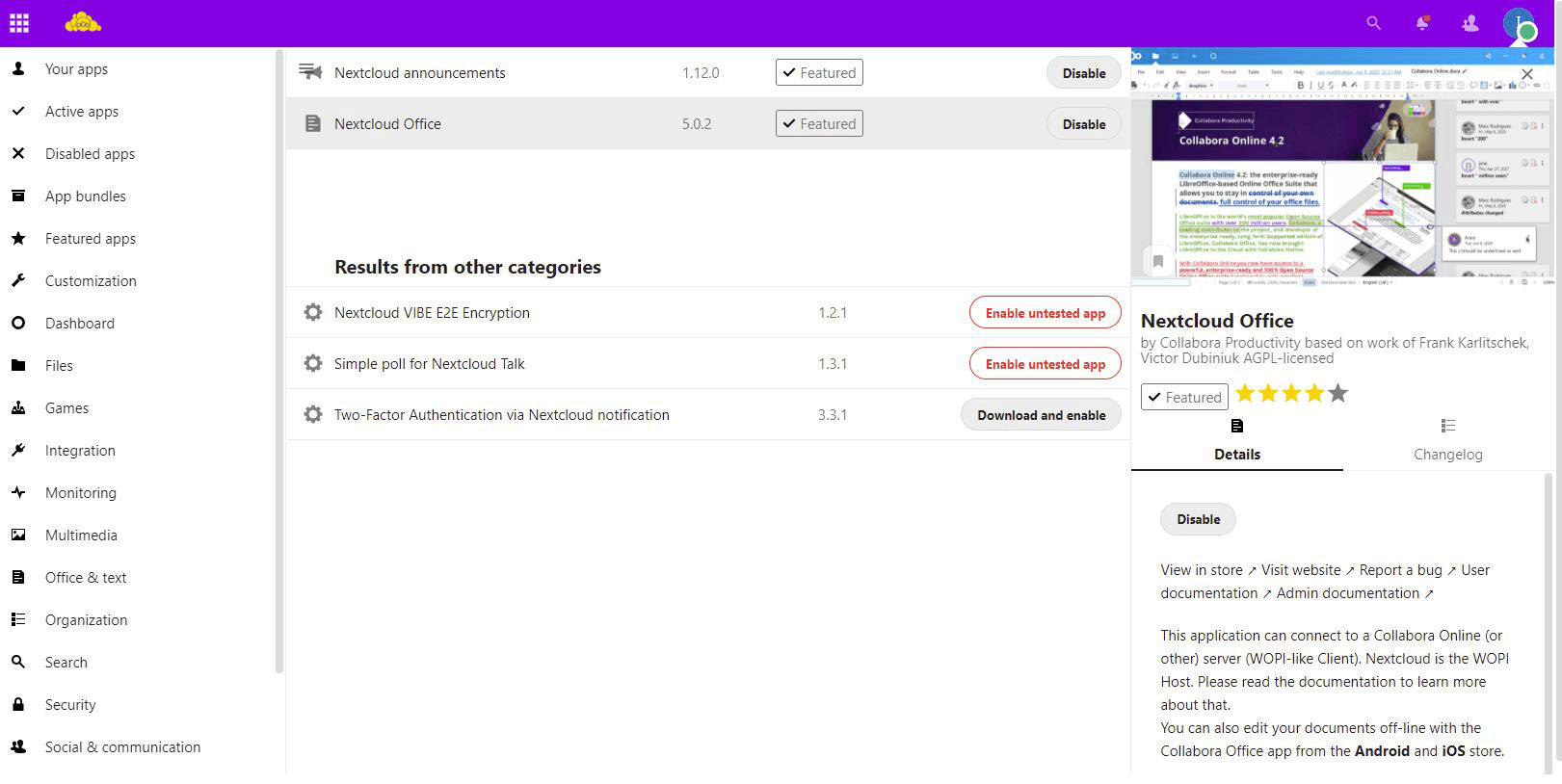
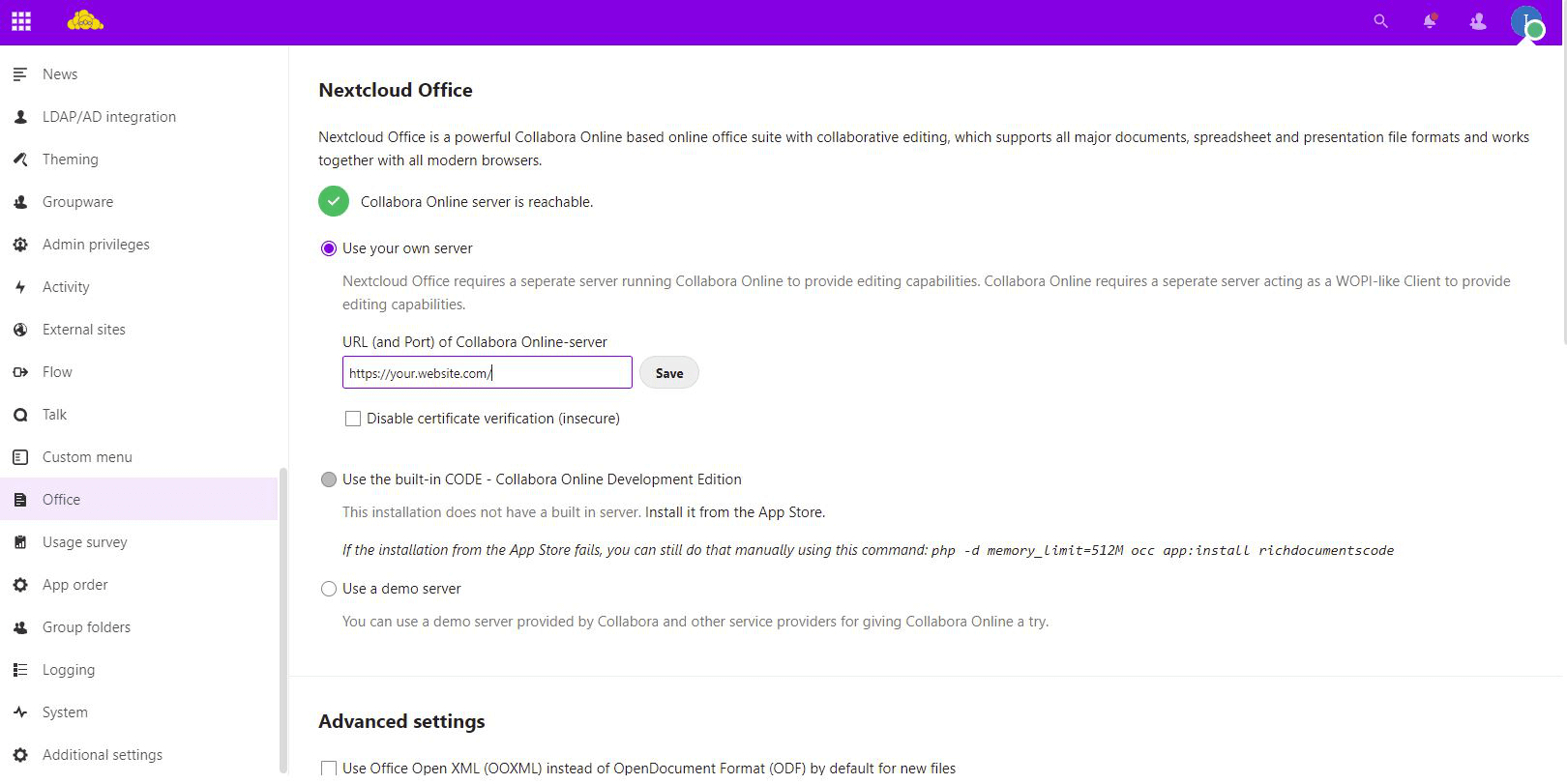
Switch to the Collabora settings and enter the Domain (https://your.website.com) :
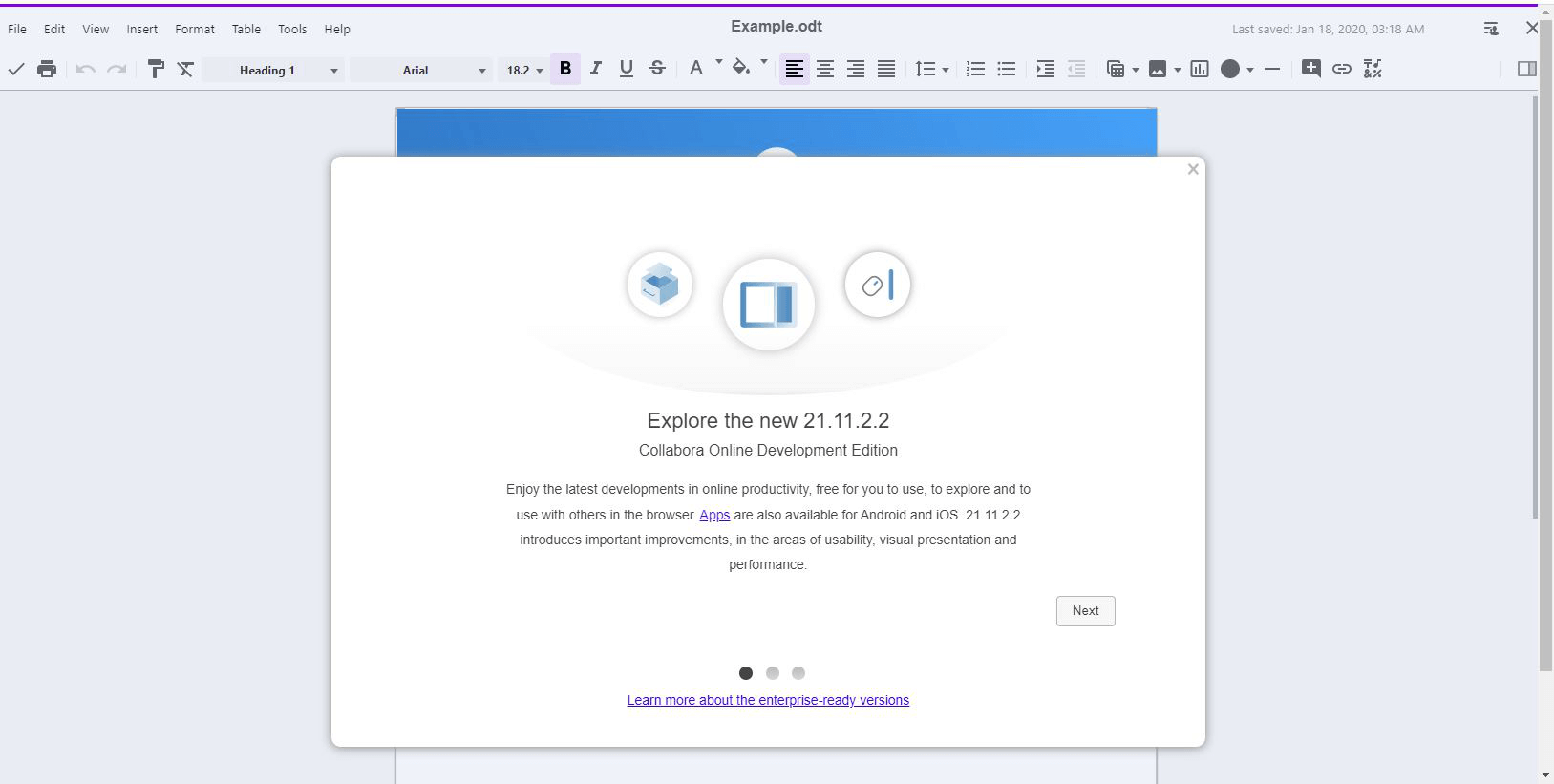
From now on, you can use the Nextcloud with an integrated office solution!!!
How to update the Docker container?
Stop docker container:
docker stop COLLABORAOFFICE Remove docker container:
docker rm COLLABORAOFFICE Another method to remove all containers
docker system prune -a --volumes Test Docker:
docker run hello-world Update collabora/code download with docker:
docker pull collabora/code Re-run docker:
docker run -t -d -p 127.0.0.1:9980:9980 -e "aliasgroup1=https://your\\.website1\\.com:443,https://your\\.website1\\.com|your2\\.website2\\.net:443" -e "aliasgroup2=https://your2\\.website2\\.net:443" -e "username=UserName" -e "password=Your-Secret" --name=COLLABORAOFFICE --restart always --cap-add MKNOD collabora/code Restart Docker in your Nextcloud Server:
docker logs COLLABORAOFFICE
service docker restart && service nginx restart
Additional tips for using Docker:
The status of the Docker container:
docker ps -a
docker container ls -a
docker image list
Displays information regarding the amount of disk space used by the docker daemon:
docker system df Clean up your docker disk space:
docker system prune
docker system prune -a --volumes
Congratulations, you now have your own personal data on your own secured Nextcloud 23 system!
The Installation of your Nextcloud Server and the Collabora Office Suite has been successfully completed, and so I wish you much fun with your data in your private Cloud system.
At Ahuitech, we create clouds systems that allow you to have complete control of your Data.
Ahuitech – Cloud Creations are always in your Control